WEBSITE DESIGN & DEVELOPMENT

Transform Your Brand With HubSpot Website Design

Expert design and development for HubSpot or WordPress websites

Why Choose Quantum for Your Website Design

We understand that your website is more than just a digital presence; it's an extension of your brand.

Our custom HubSpot and WordPress website design services ensure that your site represents your brand’s identity and caters to your business objectives.

Platforms We Specialize In

  • HubSpot: Integrated CRM and marketing features for seamless inbound marketing.
  • WordPress: Versatile and user-friendly, perfect for businesses of all sizes.
  • Shopify: E-commerce powerhouse designed to boost your online sales.
MAKE THE LEAP

Our Proven Web Design Process

To ensure the success of your website, we follow a structured, research-driven process:
Priorites-768x568-1

Information Gathering

We start by understanding your business, target audience, and goals. This crucial step sets the foundation for a website that meets your specific needs.

Planning

Based on the gathered information, we create a strategic plan for your website. This includes defining the site structure, technology stack, and project timelines.

Wireframing

We develop wireframes to outline the basic layout and functionality of your site. This visual guide helps you understand the flow and user experience before we move to the design phase.

Content Writing

Our talented writers craft compelling and SEO-friendly content that resonates with your audience and supports your brand’s voice.

Design and Building

Our award-winning designers create a visually stunning and cohesive design. Our developers then bring this design to life, ensuring your site is responsive, fast, and secure.

Testing, Review, and Launch

Before your site goes live, we conduct thorough testing to ensure it functions perfectly across all devices and browsers. After your approval, we launch your website, making sure everything is seamless and ready for your audience.

Ready to Elevate Your Online Presence?

Contact us today to learn more about our Website CMS services and discover how we can help you build a website that truly represents your brand and achieves your business goals. Let’s create something amazing together.

TESTIMONIALS

What our customers say

“Our experience has been wonderful. Quantum is a well-run company from top to bottom. They are very detailed and organized when it comes to keeping us on track. They are willing to help on any level of marketing and training. A pleasure to work with.”

"Quantum Business Solutions transformed our use of ZoomInfo. We went from just scratching the surface to fully leveraging its capabilities, driving significant growth in our lead generation efforts."

"Thanks to Quantum's guidance, we now fully capitalize on our ZoomInfo investment. Their strategic approach to data analysis and lead generation has been instrumental in our success."

Get notified on new sales and marketing insights

Be the first to know about new B2B sales and marketing insights to create a winning go-to-market strategy.

HubSpot Sales Sequences

Sales Sequences Playbook

The complete guide to building, managing, and optimizing HubSpot Sales Sequences — with real HubSpot screenshots, proven templates, and the full QBS Revenue Efficiency Model.

Book Your Free Strategy CallBook a Call

10

Core Sequences

5

Revenue Stages

25%+

Target Reply Rate

11

Real Screenshots

Contents

What's Inside

1

What Are HubSpot Sequences?

Overview, requirements, and use cases

2

How to Create a Sequence

Step-by-step with real HubSpot screenshots

3

Adding & Editing Steps

Reorder steps, edit templates inline

4

Sequence Settings

Send windows, business days, automation

5

Enrolling Contacts

Manual, bulk, and automated enrollment

6

A/B Testing

What to test and how to read results

7

The 10 Core Sequences

Templates for every sales scenario

8

Email Framework

5-part structure that converts

9

Revenue Model Mapping

Sequences mapped to each QBS stage

10

Domain Warmup Protocol

3-phase warmup for inbox placement

Foundation

What Are HubSpot Sequences?

What Are Sequences?

Sequences are a series of targeted, timed email templates that automatically nurture contacts — combining automated sends with manual task reminders. They stop automatically the moment a contact replies or books a meeting.

The Auto-Unenrollment Advantage

When a contact replies to any email in the sequence OR books a meeting via your scheduling link, HubSpot automatically removes them — no awkward double-follow-ups, no manual cleanup.

Prerequisites

Requirements

RequirementDetailsStatus
HubSpot SeatSales Hub or Service Hub — Professional or EnterpriseREQUIRED
Connected Personal EmailYour personal inbox only — team inboxes cannot be usedREQUIRED
Sequences PermissionMust be enabled by a Super Admin in user settingsREQUIRED
Email TemplatesDraft all templates before building your sequenceBEST PRACTICE
Scheduling LinkSet up HubSpot Meetings for CTA emailsRECOMMENDED

Use Cases

Common Use Cases

📧

Lead Nurturing

Build relationships with timely, relevant emails over days or weeks

📅

Demo Follow-Up

Keep momentum after demos with structured, value-led follow-ups

🔄

Re-Engagement

Bring cold or dormant contacts back into the conversation

📄

Proposal Follow-Up

Keep proposals from going dark with automated follow-up timing

How-To Guide

How to Create a Sequence

Every screenshot below is taken directly from HubSpot's official knowledge base — this is exactly what you'll see in your account.

1

Navigate to Sequences

In the top nav, click Sales → Sequences. You'll land on the sequences dashboard.

2

Click "Create Sequence"

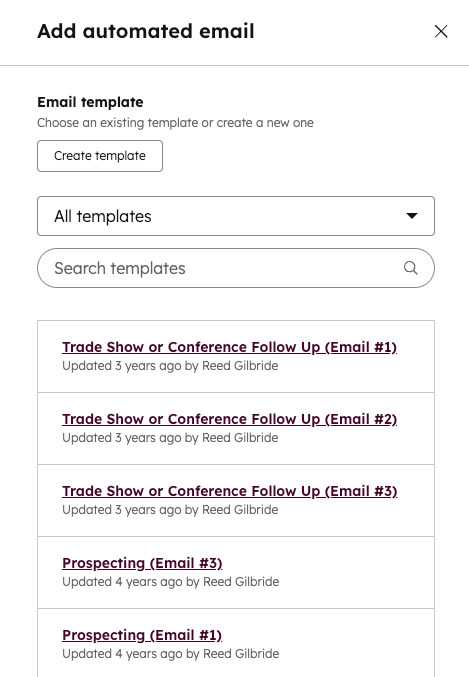
Choose Start from scratch or pick a template. Click + then select Automated email from the right panel.

3

Set delays between steps

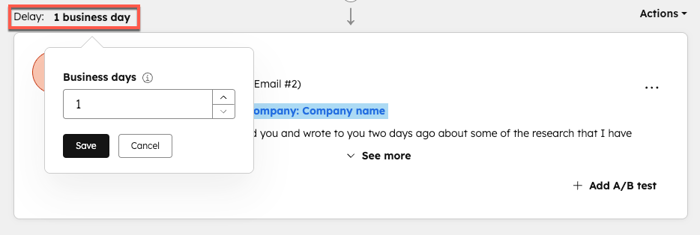
Click the delay indicator between steps to set how many business days pass before the next step executes.

4

Name and share the sequence

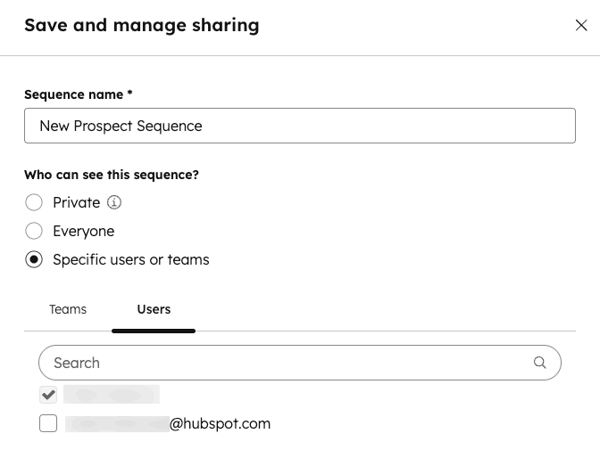
Use a consistent convention: [Use Case] — [Audience]. Update sharing so your team can access it.

Adding an automated email step in HubSpot

Real HubSpot screenshot · Adding an automated email step — right panel with template selector

Setting the delay between sequence steps in HubSpot

Real HubSpot screenshot · Setting the delay between sequence steps

Save sequence and manage sharing permissions dialog

Real HubSpot screenshot · Saving and managing who can access the sequence

How-To Guide

Adding & Editing Steps

Add up to 10 automated email steps, plus unlimited task reminders. Reorder steps any time and edit templates directly from the sequence editor.

Reordering Steps

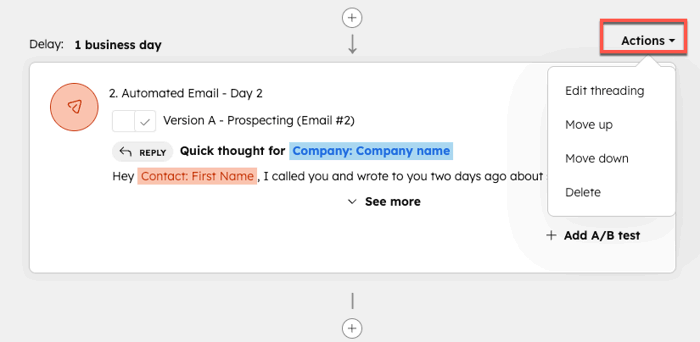
Click the Actions dropdown on any step to move it up or down in the sequence. Changes take effect immediately for future enrollments.

Editing Templates Inline

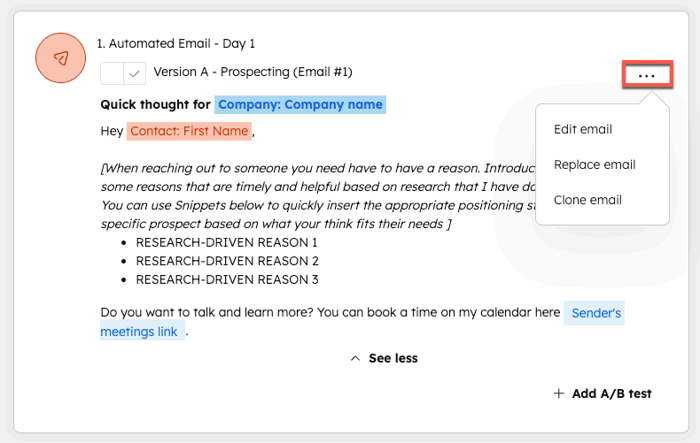
Click any email step to expand and edit the template directly — no need to leave the sequence editor. Changes apply to all future sends.

Reordering steps via the Actions dropdown

Real HubSpot screenshot · Reordering steps via the Actions dropdown — Move up / Move down

Editing an automated email template inline

Real HubSpot screenshot · Editing an automated email template inline without leaving the sequence editor

Reference

Step Types

StepWhat It DoesBest ForLimit
📧 Automated EmailSends automatically on your configured scheduleNurture, follow-ups, proposals10 per sequence
✏ Manual Email TaskCreates a to-do with a template pre-loaded for personalizationHigh-value custom outreachUnlimited
📞 Call TaskReminds rep to phone the contact at the right momentWarm outreach, check-insUnlimited
✅ General TaskAny custom action — LinkedIn visit, research, etc.Multi-channel touchpointsUnlimited
💼 LinkedIn InMailTask to send a Sales Navigator InMailCold prospecting, ABMUnlimited

How-To Guide

Sequence Settings

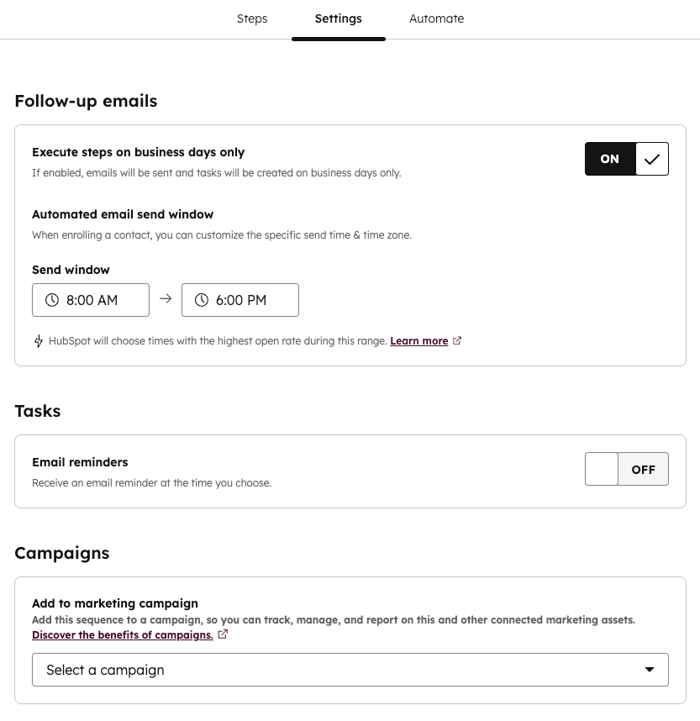
The Settings tab controls send timing, business day logic, and task reminders. These settings apply to all steps after the first one.

Full sequence settings: business days, send window, task reminders, campaign association

Real HubSpot screenshot · Full sequence settings: business days, send window, task reminders, campaign association

⏰ Best Practice: Send Window

Set 8am–11am in the contact's time zone. HubSpot uses previous open history to pick the optimal time. Mid-morning outperforms afternoon for B2B reply rates.

Automation

Workflow Automation — Enroll via Triggers

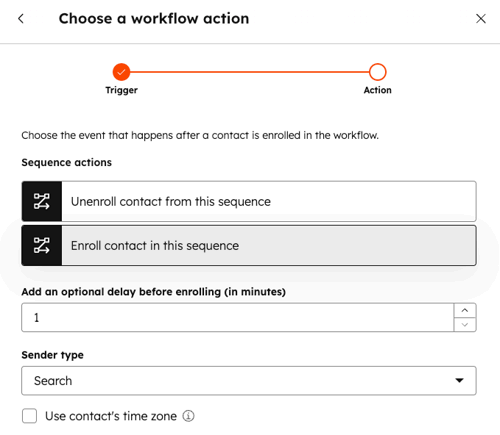
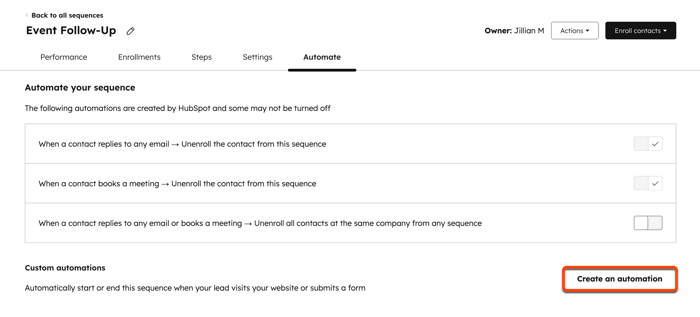
From the Automation tab in the sequence editor, you can create embedded workflows that enroll contacts based on form submissions or page views — no need to use the full Workflows tool.

The Enroll in a sequence workflow action dialog

Real HubSpot screenshot · The Enroll in a sequence workflow action (Sales/Service Hub Enterprise)

How-To Guide

Enrolling Contacts

Enroll contacts individually from a record, in bulk from the contacts index, or automatically via workflow triggers.

Bulk Enrollment

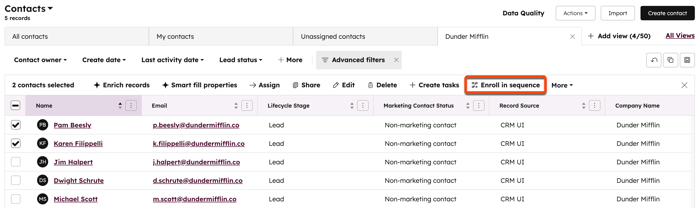
Select up to 50 contacts from the contacts index page, then click "Enroll in sequence" from the bulk actions toolbar.

Customizing Send Dates

When enrolling, you can customize the send date and time for the first email. HubSpot shows a timeline of all upcoming steps so you can review before starting.

Selecting multiple contacts from the index page for bulk enrollment

Real HubSpot screenshot · Selecting multiple contacts and bulk enrolling — up to 50 at a time

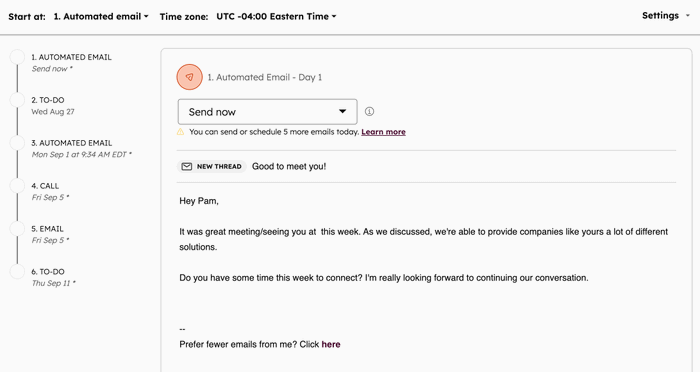
Customizing the first send date when enrolling a contact

Real HubSpot screenshot · Customizing the first send date when enrolling a contact

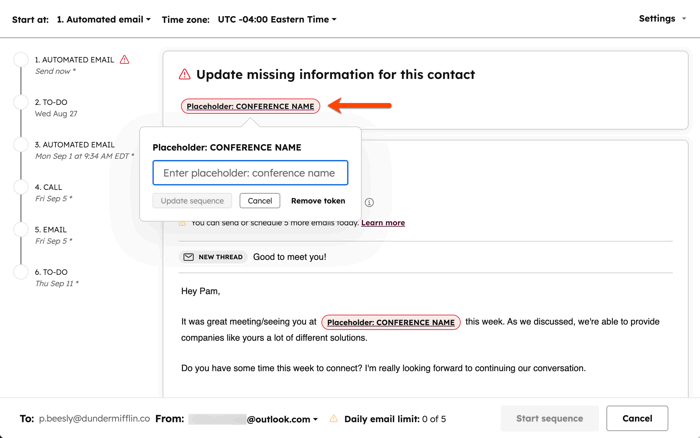
Missing personalization token values highlighted in red

Real HubSpot screenshot · Missing personalization token values appear in red — fill them before sending

The Automation tab showing embedded workflow triggers for enrollment

Real HubSpot screenshot · The Automation tab showing embedded workflow triggers for enrollment

Rules

Enrollment Rules

Before Enrolling

One sequence per contact at a time
Daily send limit applies per plan
Connected personal inbox required
Contacts auto-unenroll when they reply or book a meeting
Bulk limit is 50 contacts at a time

Optimization

A/B Testing Your Sequences

HubSpot splits sends 50/50 between variations and tracks opens, clicks, and replies per version. Test one variable at a time for clean results.

Version A

Great talking with you,

Thanks for your time today. As mentioned, we've helped companies similar to Organizations...

Open Rate48%
Reply Rate32%
Version B · Winner 🏆

3 takeaways from our call + a quick resource

— wanted to capture our main takeaways before you get pulled into your next meeting...

Open Rate61%
Reply Rate44%

📊 Version B is outperforming by +13pp open rate and +12pp reply rate — Statistical significance: Reached (95%)

Variables

What to Test (One Variable at a Time)

VariableVersion AVersion BPrimary Metric
Subject Line"Great talking with you""3 things from our call, "Open Rate
Email LengthFull paragraph-style3 short bullet points onlyReply Rate
CTA"Let me know if you have questions""Here's my calendar — 15 mins this week?"Meetings Booked
PersonalizationGeneric industry referenceSpecific company mention + use caseReply Rate
Send Timing8am–10am window12pm–2pm windowOpen + Reply Rate

A/B Testing

A/B Test Rules

Rules for Valid A/B Tests

One variable at a time only
Need 100+ contacts per version for statistical significance
Up to 6 versions per email (4 active at once)
Contacts already enrolled won't receive new versions

Playbook

The 10 Core Sequences

Every QBS sales team should have these active. Customize the copy — the structure and timing are proven.

01

Post-Demo Follow-Up

Keep momentum after a demo, move toward a decision

3 Steps7 Days
Thank you + recap key points and value discussed
Resources — case studies, testimonials, ROI calculator
Day 7Momentum check — CTA to schedule next step
02

Proposal Follow-Up

Encourage prospects to act on a formal quote

3 Steps5 Days
Proposal confirmation — ask for receipt and feedback
Value reinforcement — highlight the most relevant benefits
Objection handler — address hesitations, add urgency
03

No-Show Follow-Up

Re-engage prospects who missed their meeting

3 Steps5 Days
Friendly rebook — acknowledge missed meeting, offer slots
Value-led email — remind them what they get in 15 min
Final incentive — resource or offer to motivate action
04

Upsell Sequence

Introduce upgrades and add-ons to existing customers

2 Steps4 Days
Opportunity intro — tailored email showing the upgrade path
ROI follow-up — quantify benefits and return on investment
05

Busy / Send More Info

Keep warm prospects engaged when they say "not now"

3 Steps7 Days
Quick summary — concise overview + 1 relevant resource
Case study — specific results for a similar company
Open question — low-pressure way to restart conversation
06

Coffee / Lunch in the Area

Build rapport with an informal in-person meeting

3 Steps1 Week
Trip announcement — mention you'll be in their area
Reminder + specific time slots — confirm interest
Final confirmation — ensure plans are locked
07

Re-Engagement

Reignite customers who've gone quiet 3–6 months

3 Steps7 Days
Re-intro — remind of past value + highlight new offerings
Incentive — exclusive offer for returning customers
Soft check-in — open-ended question, no pressure
08

Just Missed You

Follow up after unanswered call or cancelled meeting

3 Steps4 Days
Missed call reference — low-pressure, suggest new time
Easy rebook — short message with calendar link
Value reminder — what 15 mins gives them specifically
09

Cold Prospecting

Introduce your solution to ICP-fit prospects

3 Steps6 Days
Tailored intro — reference their role, industry, or challenge
Social proof — relevant success story or outcome metric
Day 6Clear CTA — direct ask for 15-min call with calendar link
10

Lost Deal Revival

Re-open conversations with lost deals at 3–6 months

3 Steps3 Weeks
Re-introduction — acknowledge time passed, what's new
New angle — present a different benefit now more relevant
Low-pressure close — ask if timing or decision makers changed

Analytics

Tracking Performance

Post-Demo Follow-Up — SMB

84
Total Enrolled
58%
Open Rate
38%
Reply Rate
24%
Meeting Rate
StepSentOpenedRepliedMeetings
📧 Thank you + recap8468%32%18%
📧 Resources + case study5744%28%12%
📞 Call task3135%

Framework

The 5-Part Email Framework

Every sequence email should follow this structure. Research consistently shows 50–125 word emails have the highest reply rates. Short, specific, actionable.

01

Subject Line

6–10 words, personalized, curiosity-driven

Keep it short and specific. Include their name or company when possible.

"How Organizations Can Cut IT Costs by 20% This Quarter"

02

Opening Line

Reference a recent event, shared connection, or specific problem

Skip "I hope this finds you well." Start with proof you did your research.

"Noticed your recent expansion — IT growth at that pace gets complex fast."

03

Body Copy

Their pain first — your solution second. 1–2 bullet points max.

Make it about them. Include one specific social proof reference.

"We helped [Similar Company] reduce costs 30% while improving uptime."

04

Call to Action

One clear, specific, low-friction ask with a scheduling link

Be specific about what the meeting is for. Create urgency without pressure.

"Free for 15 mins this week to walk through what this looks like for Organizations?"

05

Signature

Set once in HubSpot — auto-appended to all sequence emails

No need to add it to each template. Set once in Settings → General → Email signature.

"Settings → General → Email signature → auto-appended to all sends"

Strategy

Revenue Model Mapping

At QBS, every sequence maps to a specific stage in the Quantum Revenue Efficiency Model. Keep outreach intentional — not random touchpoints.

KEEP
Retain
  • Check-In
  • QBR Scheduling
  • Renewal
GROW
Expand
  • Cross-Sell
  • Upsell
  • Re-Sell
  • Follow-Up Calls
MULTIPLY
Referrals
  • Referral Request
  • New Role
  • MQL Nurture
  • No-Shows
  • Open Deals
CONVERT
Close
  • Stalled Deals
  • Target Accounts
  • LinkedIn
  • Trade Shows
EXPAND
New Business
  • Intent Leads
  • ICP Personas
  • Proposals
  • Web Visitors

Technical Setup

Domain Warmup Protocol

Before sending at scale through HubSpot, you must establish domain trust with Gmail and Outlook. Skip this and even the best copy lands in spam.

Phase 1: Manual Human Warmup (Days 1–10)

Set up 3+ real inboxes on your domain
Each person sends 5–15 plain-text, human-looking emails per day
Send to internal team, clients, and personal accounts
Reply to everything within 5–10 minutes
Goal: 50+ reply threads across all inboxes before Phase 2

Phase 2: Initial HubSpot Sends (Days 11–20)

Days 11–13: 100 contacts/day
Days 14–15: 200 contacts/day
Days 16–17: 500 contacts/day
Days 18–20: 1,000 max/day
Start plain text, no tracking. Enable open tracking Day 14. Enable click tracking Day 16.

Phase 3: Ongoing Monitoring (Day 21+)

Google Postmaster Tools — domain reputation, spam rate, authentication
GlockApps / Mailreach — inbox placement across Gmail, Outlook, Apple Mail
Microsoft SNDS — request access if Outlook is filtering your sends
Seed Inboxes — self-test every major campaign with accounts you control

Final Check

Pre-Launch Checklist

Before Your First Campaign

3+ real inboxes per domain, each sending 5–15 emails daily for 10 days
50+ reply threads exchanged before first HubSpot send
First HubSpot email: plain text, no tracking, under 100 contacts
Gradual scaling over 10 days — max 1,000/day before monitoring confirms health
SPF, DKIM, and DMARC correctly configured on all sending domains
Google Postmaster Tools showing "High" domain reputation
Inbox placement confirmed with seed accounts before scaling

HubSpot Knowledge Base

Official Sequence Docs

Every how-to guide in this playbook is sourced from HubSpot's official knowledge base. Click any card to read the full article.

📄

Create & Edit Sequences

Full guide to creating sequences, adding steps, editing templates, and the automation tab.

👥

Enroll Contacts

Manual single enrollment, bulk up to 50 contacts, and workflow-based automation.

📊

Analyze Performance

Reading the Performance tab, step-level analytics, reply rates, and meeting rates.

🧪

A/B Testing

Set up split tests, view results, and apply winning versions to active sequences.

🚫

Unenrollment

Manual and automatic unenrollment, bulk unenroll, and editing active sequences safely.

🔀

Dynamic Sequences

Branching sequences that adapt based on email opens and clicks — enterprise only.

Ready?

Ready to Maximize Your Outcomes?

Book a free strategy call.

Book a Strategy CallTake the Assessment