
 Shawn Peterson·Mar 8, 2026, 1:21:55 PM
How to Use HubSpot Lists for Segmentation
A comprehensive guide to mastering Active and Static segments in HubSpot CRM.
In the world of inbound marketing, personalizing your outreach is the difference between a conversion and a "unsubscribe." HubSpot Lists: now officially referred to as Segments, are the engine behind this personalization. By grouping your contacts, companies, or deals based on specific criteria, you can ensure that the right message reaches the right person at exactly the right time. Whether you're managing a monthly newsletter or cleaning up your CRM data, mastering segmentation is an essential skill for any HubSpot user.
✅ Key Takeaways
- Active Segments are dynamic; they update automatically as records meet or lose set criteria.
- Static Segments are snapshots; they capture a specific group of records at a single point in time.
- HubSpot now supports AI-generated segments using Breeze to simplify complex filter creation.
- Correct segmentation is required for automated workflows, targeted email marketing, and CRM hygiene.
Understanding the Two Types of Segments
Before you start clicking buttons, you must decide which type of segment fits your goal. Choosing the wrong type can lead to automated emails being sent to the wrong people or missed opportunities in your sales funnel.
1. Active Segments (The "Auto-Pilot" List)
Active segments are "living" lists. HubSpot constantly monitors your database; when a record matches the rules you've set, it’s added. When it no longer matches, it’s removed. This is ideal for:
- Ongoing marketing newsletters.
- Triggering workflows based on Lifecycle Stage changes.
- Sales queues based on lead scores that fluctuate daily.
2. Static Segments (The "Snapshot" List)
Static segments do not update. Once created, only manual intervention (adding or removing records) changes the list. These are best used for:
- One-time event attendee lists (e.g., "Webinar Registrants - Oct 2023").
- Internal staff lists for company announcements.
- Bulk deletion tasks where you need to verify the records before purging.
Initialize Your Segment
To begin, navigate to CRM > Segments in your HubSpot sidebar. In the upper right-hand corner, click the orange Create segment button. You will be prompted to select the primary object you wish to filter, usually Contacts, but you can also segment Companies or Deals depending on your goals.
Pro Tip: If you are on a Starter, Professional, or Enterprise plan, try the AI generation box. Simply type "Every contact in California who clicked an email last week" and HubSpot will attempt to build the logic for you.
Add Filters for Same Object Properties
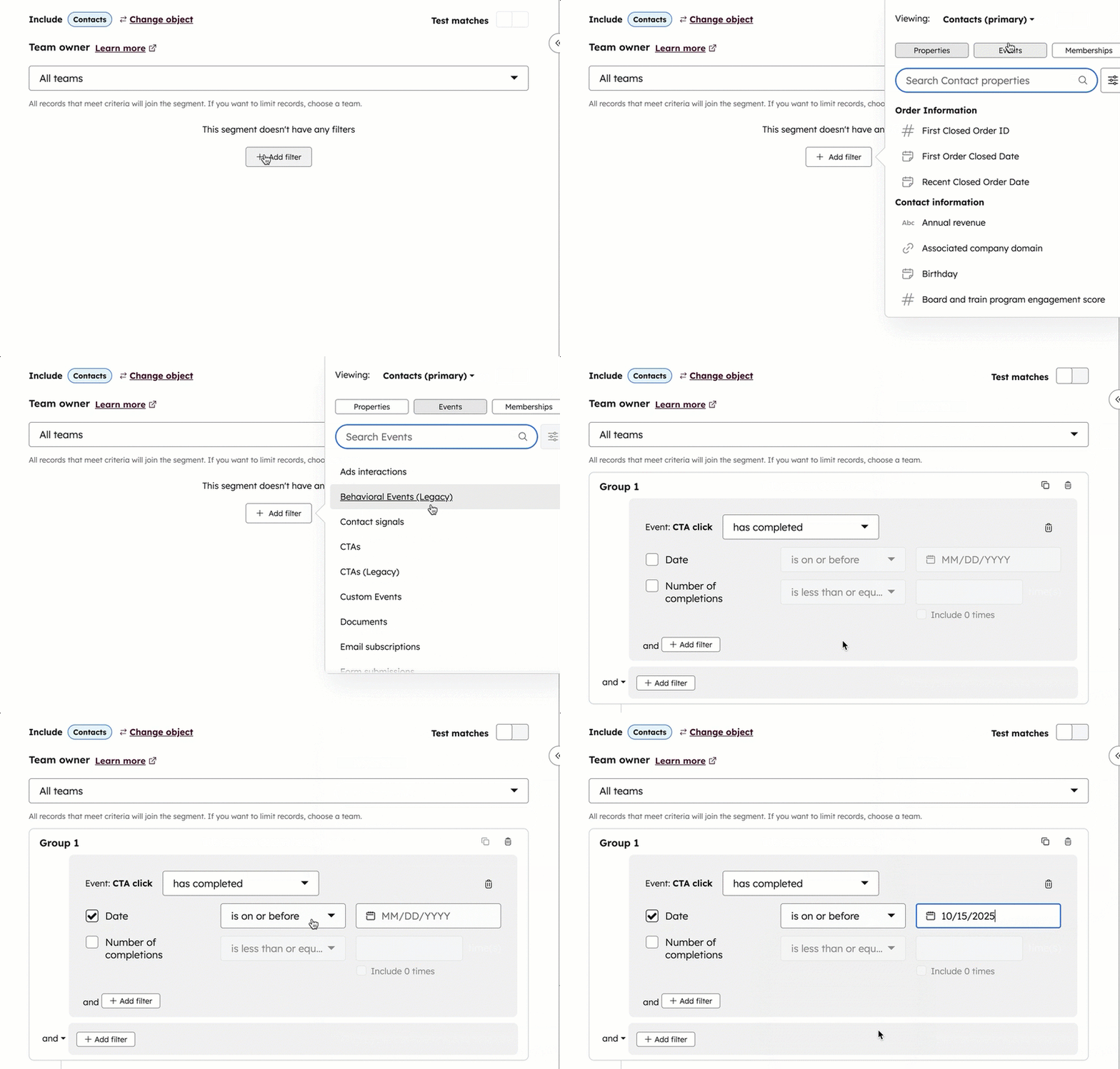
Once you are in the segment editor, you need to define the "Who." Click + Add filter in the left-hand panel. This allows you to select properties that exist directly on the record type you chose. For example, if you are creating a contact list, you can filter by "First Name," "Lead Status," or "Country."
Add Filters for Associated Objects
The real power of HubSpot segmentation lies in cross-object filtering. You can create a list of Contacts who are associated with a Deal that has a value over $10,000, or Contacts associated with a Company in the "Technology" industry. This creates a highly targeted segment based on relationship data.
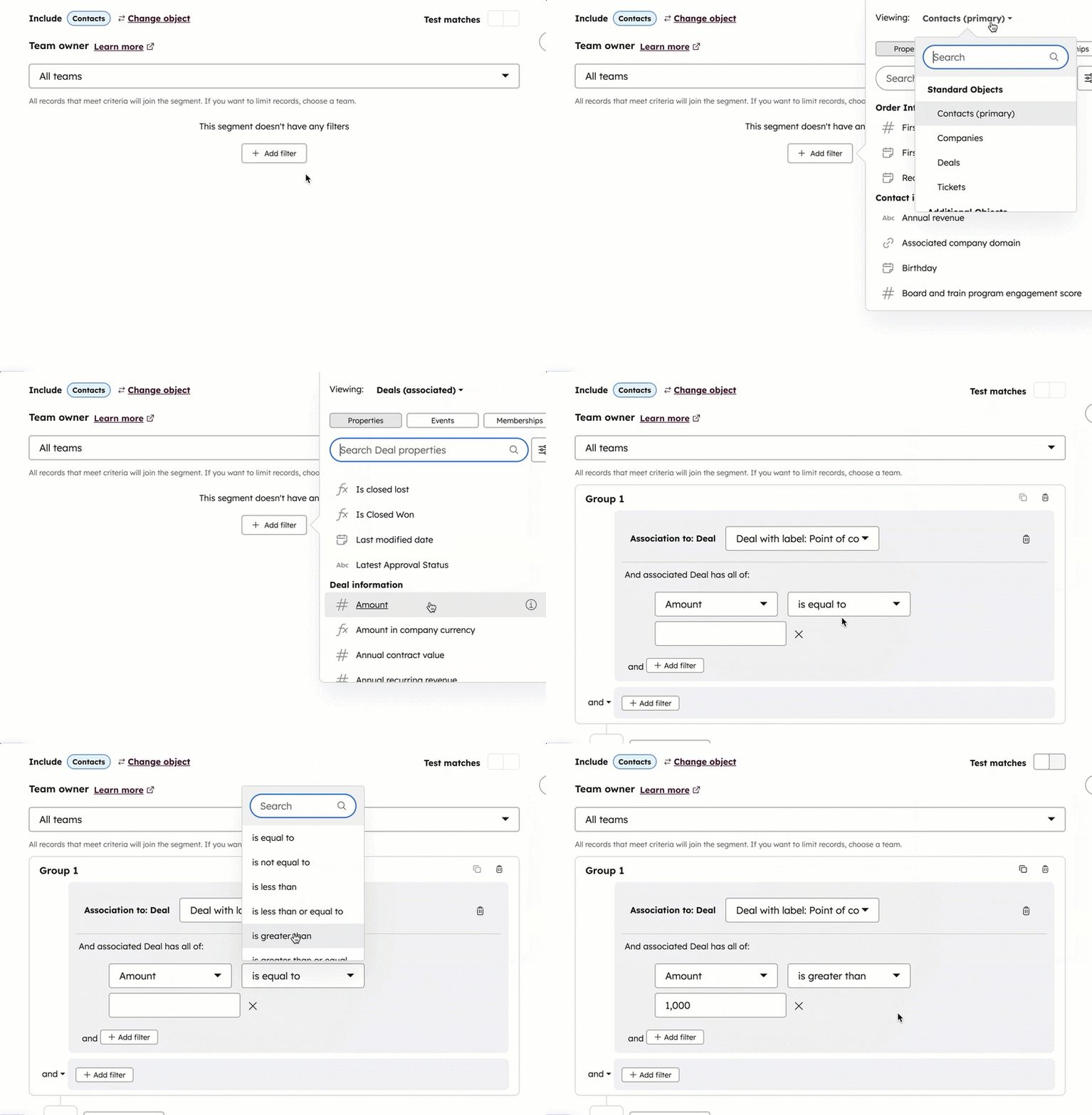
Manage Filter Groups and Logic
Segmentation uses **AND** and **OR** logic. - Using **AND** between filters means a contact must meet every requirement. - Using **OR** means they only need to meet one of the requirements. You can clone or delete groups to experiment with complex audiences without starting from scratch.

Naming and Organizing
Before saving, click the pencil icon in the top left to give your segment a clear, descriptive name. Use a naming convention such as "[Object] - [Purpose] - [Date]" to keep your account organized. You can also click Add to folder to store related segments together, such as all segments for a specific marketing campaign.

❓ Frequently Asked Questions
Can I change a static segment into an active segment?
No, segment types cannot be changed after they are created. You would need to create a new segment and clone the filters into the desired type.
Is there a limit to how many segments I can create?
Yes, limits depend on your HubSpot subscription level. Free versions have the lowest limits, while Enterprise accounts can have thousands.
How fast do active segments update?
Usually, segments update in real-time or within a few seconds of a record property change. However, for large databases or complex filters, it may take a few minutes to process.
No call required
Tell us what is not working in your portal
Describe the problem in a line or two and we will reply with an honest read on what is causing it and what we would fix first. If the answer is that you do not need us, we will say that.